

I know this is a long piece about an apparently easy operation, but it is full of decisions you are likely to make and should seriously think about before doing. It’s also easy to forget how to do it. I’m helping with the rationale, the thinking, and a little of the panic about what to do before it happens, hence you’ll read about my own experience.
Anything in ditto marks, ‘like this’, is merely to contain the words that you might have to press on your computer keyboard. Words like ‘Disk Management’ are capped to ensure you remember their significance and that they don’t vanish into the text.
Introduction
Before Covid really hit home and looked likely to cut back computer production for a while, I bought a new top-of-the-range laptop from Dell, customising it to my needs, with the assurance that my choice would last at least 10 years. At the time, no one knew how long Covid would last.
The only thing I’ve had to change is its battery, which is only supposed to last three or four years and is probably due again this year. Even when the warning signs come up, you’ve still got a couple of weeks to do it, which is reassuring, as the manufacturer gives you some leeway rather than simply letting the machine stop working. The cost of a new battery is far cheaper than a new computer. Opening the base to do the switch is very easy, although you’ll be directed into BIOS on reboot to enter the time and date. Although this is likely to be corrected the first time you go online, do it anyway or the computer will think there is something wrong. I’m adding details as I write this article in case there are any unanswered questions about where this all started.
Any new computer, even one with 16 CPUs, is likely to be considered old soon after being bought, although mine is still going strong in its sixth year. Hopefully, you are the kind of person who uses a computer until it bites the dust rather than changing models every year, which is rather expensive. The only thing that might force a change, especially with laptops, is not having enough memory/RAM for a new version of Windows, as happened when Windows 10 updated into Windows 11 and machines with only 4GB needed 8GB. Even back then, I thought manufacturers were underestimating the needs of the software and never went lower. Don’t ask how big my RAM is. It’s a lot, only because I asked a basic question about how much memory was needed to power such a beast.
When Things Can Go Wrong With No Control
The same can also apply to the internal hard drive. If you followed my previous pieces on setting up your computer, then you would have partitioned it to protect your data files. I came across one exception so far with my back-up desktop computer. About 18 months back, Windows 11 played up and, without me being able to control or stop it, reinstalled itself, wiping out all the partitions in the process. As it was the back-up computer, all I had to do was remake the partitions and redo the back-up files. I assumed everything was OK and only really used it for Windows 11 updates. Then that aspect froze, although I could still use the computer, just without updates. This time, I had a natter with Microsoft and the nice lady initiated a Windows 11 reinstall, preserving my partitions and restoring the links. A joy to behold, even if it took several hours and she had to leave during the final stages because the contact link was lost.
I’m pointing this out because something as unpredictable as that can never be anticipated and, if you’ve only got one set of your data files, you’re awfully vulnerable. If your updates freeze, contact Microsoft, as they will help you out.
For the back-up computer, I wanted to be sure, so I finally put in an auxiliary hard drive. It took a little while to secure it in position and use right-angle cable plugs to keep everything flat inside the limited space of the case. I partitioned this one like the laptop partitions and, using a solid-state external hard drive, transferred files to it and then to the back-up computer’s own hard drive. I don’t like taking chances. If nothing else, I had two copies on the second hard drive, so they couldn’t be lost. The thing is, no matter how many times you promise yourself you’ll do back-ups regularly, Parkinson’s Law kicks in and there are always other things to fill the time.
Not Keen On Solid State Drives
Now, I’m not a great lover of solid-state hard drives, referred to from now on as SSDs. Like SSD finger drives, if you use them regularly, they have a limited life and then files can be lost. Their lifespan may have improved now, but they only really became a choice for computer manufacturers when they wanted to make laptops thinner, which is also why they took out the DVD drive. SSDs are fine for storage, but I don’t access mine all the time, so they should last a long time.
When you have software like Windows on PCs, or macOS on Apple Macs, where the operating system accesses the hard drive continually, plus whatever software you use, the number of times it is called up increases and you quickly forget that limitation, no matter how much faster it is. It feels a bit like Russian roulette, not knowing how long it will last, with everything gone if you don’t see the warning signs.
If you want to understand computer manufacturers’ apprehension, ask why some models include a second SSD to make back-ups all the time. When they fail, unless you make regular back-ups or use the cloud, you’re going to lose vital files, like your photo collection. Granted, SSDs make sense with mobile phones and their playmates, but they also have a limited lifespan and don’t usually outlast the phone itself. If you bought second-hand, then you have no idea how long its SSD will last. Are you that much of a gambler?
With a standard hard disk drive, referred to from now on as an HDD, you don’t have the same problem and, with the recognised makes, having seen the destructive tests carried out, it could even survive a sledgehammer and rarely breaks down. Which would you trust?
I should point out that there are plans to eventually replace SSDs with something akin to a writable Blu-ray disk, although no details have been finalised, let alone how big it would be or how many disks would be involved.
I do think both HDD and SSD options should be available to consumers, which means you reading this. If you had to choose between laptops being thin and your files being secure, what would you really choose?
In The Event Of A Computer Failure
If your computer breaks down, then there are a lot of gadgets, primarily called ‘hard drive docking stations’, on the market that you can hook your hard drives into, both HDDs and SSDs, assuming the latter have lasted that long, to transfer your files to a new computer. You might not use one very often but, when you need it, it is worth its weight in gold. Being multifunctional, they can take a variety of HDDs and even SSDs, assuming they are still workable.
Back Up Your Computer Files
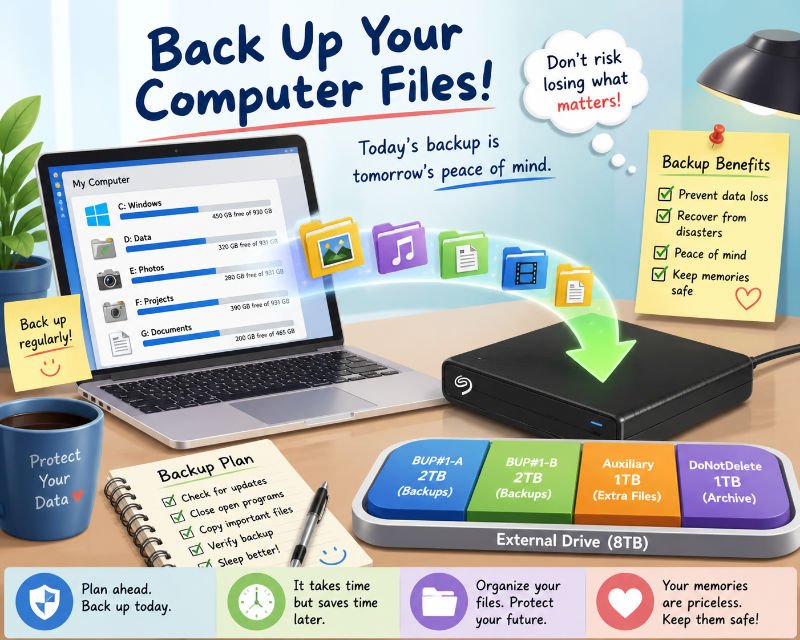
OK, so why the main title, ‘Back Up Your Computer Files’? There is still another alternative. I recently came across HDD external hard drives. They’ve probably been around for some time in this current form and come in various sizes, from 2TB to 25TB, and at various prices. Unless you have a massive hard drive in your computer, I wouldn’t go beyond 6TB or 8TB, which costs around £80 from a known manufacturer. Remember, these are your important data and picture files you are protecting. They are bigger than external SSDs, so don’t buy similar protective covers as they won’t fit. I did have to think about this. If you search for ‘mobile hard drives’ or something similar, you’re less likely to come across them. Search for ‘external hard drives’.
There are no on/off switches. Plug in the power cable, selecting the suitable socket end for your electricity supply, connect the USB to your computer, and it is up and running. My Seagate version has three files, mostly to do with online registration for PCs or Macs. Mine went on to something about making back-ups but, as I was going to partition the drive, I didn’t go any further. Instead, I transferred the three files onto the laptop’s hard drive for safekeeping. When I tried it later, it just sent in registration details again and wasn’t helpful to their software. I didn’t go in that direction. Although I don’t intend to use any programs copied over that way, you do get a better assessment of how many files went over than if you manoeuvred around them.
This will work on PCs and Macs, although as I don’t use the latter, you’ll have to find the equivalent software. The numbers are still the same.
Partitioning a massive hard drive brings it down to a size that is easier to defragment, which you might want to do from time to time. It also helps you know which partition it came from on your computer. For this example, I’m going to match my laptop’s 2TB size. I presume you’re sensible and preserve these files in directories of your choice, not wherever your software puts them, which tends to be in the software’s own directories. If you delete the software or it performs an update, there is always a chance you might delete the files. A little paranoia is always useful. Some software can also make your own directories the default settings. It’s just a smart move.
For those who didn’t know, 8TB isn’t quite 8TB, as a section is kept for the Health System Partition and is usually hidden. You don’t want to play with that. What you really have is 6,000,803,577,856 bytes. When you go through the Control Panel and Disk Management, what it really shows is 5588.83GB. All well and good, but you have to turn the numbers into something manageable. I’m going to show one way, although there are probably others. As you’ll also note, I’m helping the PC novice as much as the experienced user here. This is a guide and neither I nor SFcrowsnest will take any liability for any mistakes you make yourself. That’s more a legal matter. You’re welcome to contact me about anything here through the editorial page, but I hope I’ve covered everything.
Partitioning Numbers
I’m going to have four partitions on this external hard drive: 2 x 2TB and 2 x 1TB. It’s a lot easier to divide into six and double up for the partitions you need, ignoring anything beyond the decimal point. One partition might have a few extra MB, but that’s a moot point. On a PC, go to Control Panel and, in the Search Control Panel box, either type ‘partition’ or ‘Disk Management’, and it will get you to the right screen. For now, some maths, as Disk Management will work in KBs, not MBs. Hence me showing the 6,000,803,577,856 bytes above. Repeating this is more to ensure these numbers sink in, especially for later.
Divide 5588.83GB by 6 = 931.4716GB * 2 = 1862.9343GB
To convert this to KB, you need to multiply by 1024:
1862 * 1024 = 1,906,688KB
932 * 1024 = 954,368KB
Big enough numbers without going beyond the decimal point, and the spare can go towards a smaller partition.
For the record, my own partition names are: BUP#1, BUP~2, Auxiliary and DoNotDelete. You might have your own choice of names, but base them on something meaningful to you. The reason for having two back-up partitions was the thought that, if I was going to do a second complete back-up and replace the first, anything going wrong could mean I was wiping out my only other recent copy. Having space for a second back-up means I can have a second copy and then rotate between the two when updating. You might have second thoughts on this, but treat this as me going into deep thought. The ‘DoNotDelete’ partition is something I’ve been meaning to do for a long time, for directories I made for particular completed projects. I can take them off the laptop’s hard drive and give myself some needed space.
Disk Management
The trickiest part is using Disk Management to partition the drive because, if you haven’t done it for a long time, it’s easy to forget. I would stick with the recommended exFAT, as it’s a format that PCs and Macs recognise. I’m assuming you know the basics of using the choice options in Windows 11 software.
If you have two disks, it’s easy to recognise which is which. The external drive will be Disk 1 with a massive amount of space on it. Disk 0 is the laptop or desktop hard drive, so don’t confuse them, especially if you have multiple hard drives in the latter.
Format the main partition and the right mouse button will allow you to make Simple Partitions. Use the numbers above for each partition. The fourth will be whatever is left, probably 954,368KB. Ensure you name and letter each partition as you go.
What Happens If You Don’t Letter A Partition
I somehow missed putting a letter on one of the partitions and that particular partition didn’t appear in File Manager. At first, I thought I had given the partition a name it didn’t like. Connecting the external hard drive to my back-up computer showed it was there. On my laptop, I looked at Disk Management, discovered the missing letter, and added it by using ‘Change Drive Letter And Paths’. Up it popped in File Manager. I doubt this happens often, but mistakes can happen and all sorts of thoughts will go through your head before you find the solution, hence the example here. Thankfully, once all external hard drive partitions are lettered, connecting it to another computer will follow that computer’s pattern of letters. It might change the letters when connected to a different computer, making them consecutive to its existing hard drive.
Like building a model kit, it takes some discipline not to rush everything in one day. A late-night thought before sleep was: how do I know which partition the directories came from? A big OOOPS! More partitions.
Making More Partitions
If I were smart, I would go over the section above and show only this, and you would think how clever I was to do all of this work from the start. But you might have gone the same route, and I found out something by doing it this way. So, sorting out my stupidity, because the above is still valid.
Before starting, look at how many partitions you have on your computer hard drive. My biggest is the C:/ partition because it contains Windows and six other partitions. After making C:/ too small on previous laptops with Windows 10, when it kept previous updates condensed but still took up space, forcing me to delete the earlier ones, I went from 250GB to 450GB. Windows 11 doesn’t appear to have this problem, but it is still sensible with any operating system to leave it plenty of space for storing earlier restore data. I’ve just checked and only 350GB is currently used, but I don’t tend to put too much other software in the C:/ partition if I can help it, just to be on the safe side.
As shown above, you don’t really need to make a copy of Windows itself because there are already other ways to protect it and restore settings. You can hardly copy it back when you need Windows 11 to do it with. However, there are sections like downloads, Internet favourites and Users that certainly need a place for back-up.
Now, if you make all seven partitions the same size as on your original hard drive, it defeats the objective if you want to transfer more files into them. Remember, I’m doing this as an example. The chances of you having the same number or usage may not be likely. You’re just seeing this for the logic. So I can reduce the size of the C:/ back-up and feed the extra space into the other external partitions.
There is no D:/ because the letter is allocated for a DVD or external hard drive. My original sizes came out of the divisions and you’ve seen this previously. For the back-up, think in terms of broad number ratios, such as doubling up. Think how much you need for important partitions, and sometimes simply double up where you know files will be added eventually. Hopefully, you’ll be moving this external hard drive to your next computer at some point, and they can all be kept together in similar partitions to your preferred computer layout.
Notice how the importance number totals 20. It makes a good round number for division and then multiplication for each importance number.
BUP#1 = 1,906,687TB divide by 20 = 98,334.35GB
98,334.35 * 4 = 381,337.40GB
98,334.35 * 3 = 286,003.05GB
98,334.35 * 2 = 190,668.70GB
Whatever is left can be allocated for H:/, where I store my wallpaper files. Anything beyond the decimal point should be ignored because Disk Management doesn’t use them. An important detail I learnt from doing all of this is that, at this stage, Disk Management was quite happy for me to work in GB this time, even if it did look odd when I divided everything into the right sizes.
I kept the BUP#1 name and, for each of the original partitions, used its letter, e.g. BUP#1-A, BUP#1-B, etc. You’re still limited to eight characters. You’ll pay more attention to these names than to the actual partition letters, and you can’t make them the same. Using the above, the results are below. Of course, if you have a different number of partitions or want to do this differently for your back-ups, it leaves that option open.
If you think you’re expert enough after doing all of this to want to do it to your computer hard drive, a word of caution. Even if you defragment your hard drive and create partitions, your program installations are geared for where they already are. Move them without knowing how to redirect the calls to them and you’re likely to lose them or have to reinstall them. Having separate space for your data files and pictures is easier and less complicated.
Write your numbers in a notepad rather than on a scrap of paper, or even into your computer notebook if you have one for quick reference. I did mine like this:
Hard Drive Partitions And Size Ratio BUP#1 BUP Names
A:/ 221.34GB 4 381,337GB BUP-A
B:/ 216.15GB 4 381,337GB BUP-B
C:/ 749.85GB 2 190,668GB BUP-C
E:/ 195.35GB 3 286,003GB BUP-E
F:/ 198.36GB 3 286,003GB BUP-F
G:/ 198.36GB 3 286,003GB BUP-G
H:/ 80.82GB 1 95,336GB BUP-H actually what’s left
With all this information, you’re ready to go.
- Delete the BUP#1 partition.
- Right-click over it and the menu options will be provided.
- Use New Simple Volume and put the numbers in from above. Then proceed as you did previously, using exFAT, a partition letter and a name.
- Work your way through the list.
When you get to the last one, it’s just a matter of formatting. You don’t need to know the number.
Obviously, all of the above will change based on your partitions and sizes, but the example should help as a practical guide.
I have to confess, the numbers and size on the screen in Disk Management looked odd, and I didn’t really believe it myself until I copied the files into each partition and compared how much space was left. When I saw I had double the space on the back-up partitions, I knew I had it right.
I wouldn’t do BUP#2 until you need it. That’s more a case of getting used to the existing partitions first.
Some advice:
- Ensure Windows 11 checks for any updates before copying and, if there are any, do them before starting. There’s no sense having to stall for a restart.
- Don’t have any programs open in any partition you are copying from.
- It takes time, depending on how big your memory/RAM is. Doing it in sections will make it easier, but try to copy each partition completely in one go to ensure all files are transferred. Depending on how full each partition is, copying may take a couple of hours or more. It’s often the size of the files rather than the number of files that takes the time. Looking at it through File Manager, you can see the back-up partition filling up, but don’t interfere with it until it is complete.
- It won’t want to copy ‘desktop.ini’, so if that comes up, tick the ‘No’ box. It’s only information about the original partition and won’t really be needed in the back-up partition. Use your discretion with anything else it queries as it completes.
Once this is all done, look at any directories that you rarely add anything to and put them in the DoNotDelete partition as well. You might also transfer any digital camera JPG files there as a back-up. If you have a second computer, duplicate them there as well so you have multiple spare copies. If they are valuable to you, or you would regret losing them, do it. You might still lose some current files in a critical failure, but most will be protected. However, the external HDD is your main storage hard drive.
If you copy directly into these partitions, the Windows process will recognise the files you already have there and offer just to put the new ones in. It won’t remove any you’ve deleted.
The speed from computer to external hard drive is actually very good. Transferring between partitions on the external hard drive, at least on my back-up computer, took an age, so it is better to use the first option.
I hope you’ve read all of this a couple of times, or even printed it out, before starting. Doing the maths first and even waiting until the next day before starting will put you in the right frame of mind. I hope this has been useful and sorry if it is long-winded. If you think a simplified version should be available, let me know. My email address is in the editorial, or merge the spaces:
letters @ SFcrowsnest.info
Geoff Willmetts
April 2026



Join the conversation (0)